
Creating an alarm #
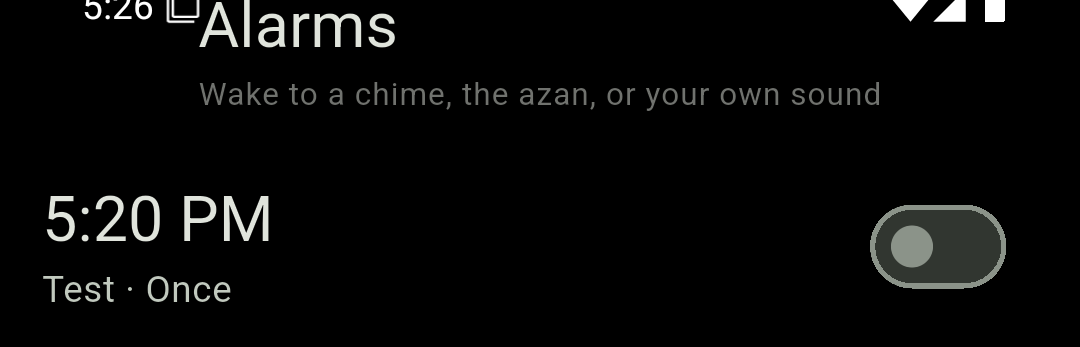
Tap +, spin the hour and minute wheels (with an AM/PM toggle if your phone is on 12-hour time), then work down the rows. Each row opens its own small sheet, and tapping an option selects it immediately. Finish with Save.
| Row | What it does |
|---|---|
| Repeat | Day chips Mon–Sun, plus the presets Once, Every day, Weekdays and Weekends. A new alarm is Once. |
| Sound | See Choosing a sound. |
| Ring duration | How long it rings unattended: 1, 2, 5, 10, 15 or 30 minutes. Default 10 min. |
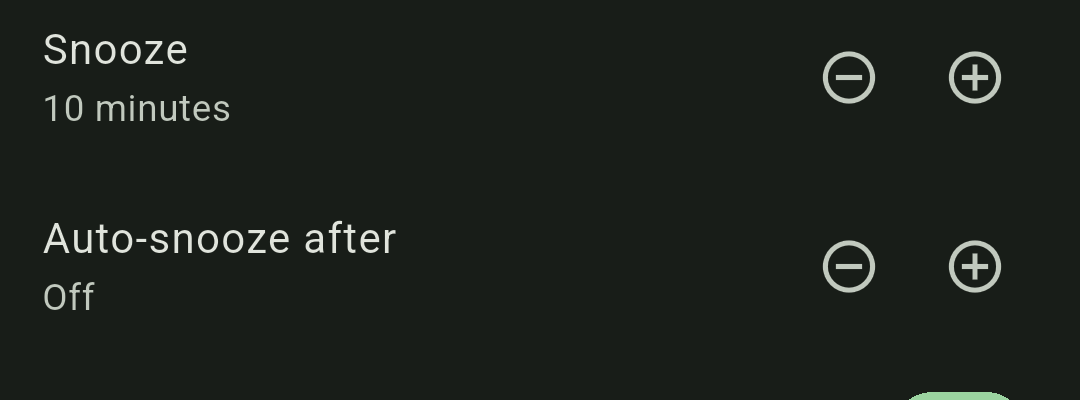
| Snooze | Snooze length: 5, 10, 15, 20, 25 or 30 minutes. Default 10 minutes. |
| Auto-snooze after | See Auto-snooze. Default Off. |
| Wake-up puzzle | See Wake-up puzzles. Default Off. |
| Alert screen | See Alert screens. Default LED Minimal. |
| Vibrate | Buzz as well as ring. On by default. |
| Gradual volume | Ease the sound in instead of starting at full volume. On by default. |
| Label | A free-text name — “Fajr”, “Leave for work”. Shown on the alarm list and on the ring screen. |
Choosing a sound #
The Sound row opens a searchable picker with three sections:
- Chimely sounds — Westminster chime, Count chime and Azan.
- Phone ringtones — everything your phone already has.
- Music on device — your own audio files. The first time, tap Allow access to grant Android’s media permission.
Every row has a ▶ button to preview it. A new alarm starts on Westminster Chime. Choosing your own file makes Chimely keep a private copy, so the alarm still works if the original moves.
Any alarm set to the azan always rings on the Mosque Night screen, whatever the Alert screen row says — the azan deserves a setting that matches it.
Alert screens #
Six ways for an alarm to present itself when it fires.
| Style | What you do to stop it |
|---|---|
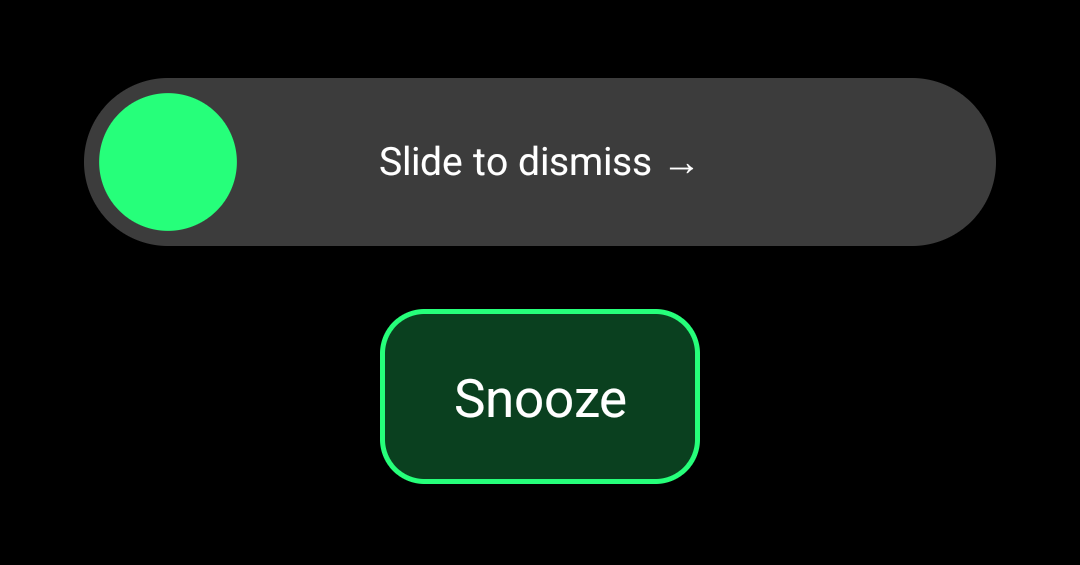
| LED Minimal Default | Slide the handle across a “Slide to dismiss →” track, or tap Snooze below it. |
| Halo | Two round glyph buttons — the crescent snoozes, the cross dismisses. |
| Mosque Night | Snooze and Stop azan. Used automatically for azan alarms. |
| Big Buttons | Two full-width targets, SNOOZE on top and DISMISS below. Easiest half-asleep. |
| Frosted Card | A frosted panel with equal Snooze and Dismiss buttons. |
| Focus Swipe | No buttons at all — swipe up to dismiss, swipe down to snooze. |
Wake-up puzzles #
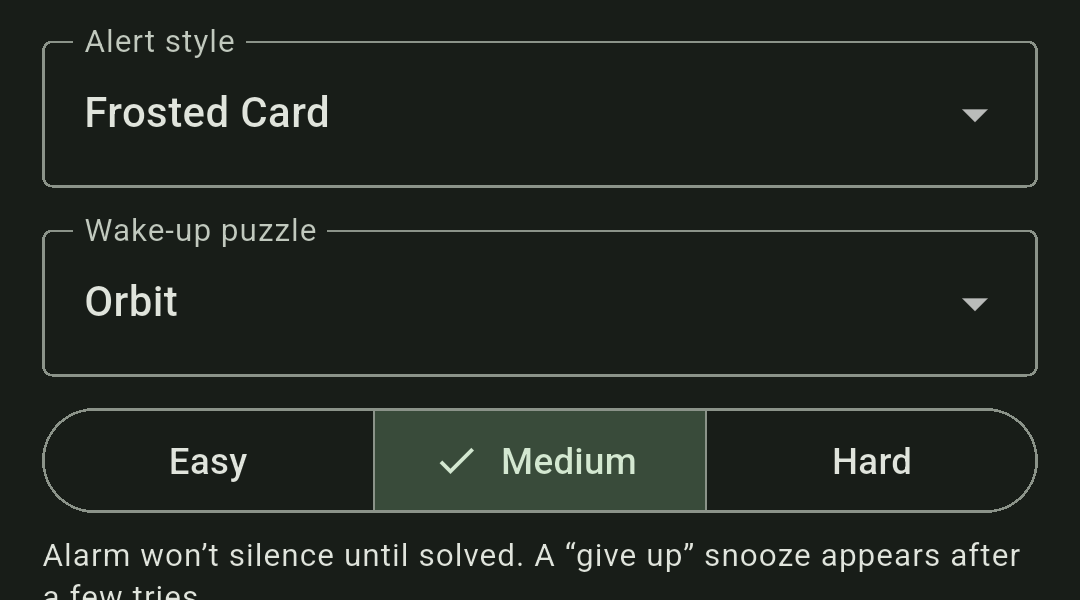
Make the alarm refuse to stop until your brain is actually online. Choose Off (default), Orbit, Math, Order the tiles or Retype phrase, then a difficulty: Easy, Medium (default) or Hard.
While a puzzle alarm rings the screen reads “Solve to dismiss”, and there is deliberately no shortcut past it. If you genuinely cannot — after a few failed attempts, or about a minute — a Give up — snooze button appears so you are never trapped.
Auto-snooze #
Auto-snooze after makes an ignored alarm snooze itself rather than simply ringing out and giving up. Options run from Off through 10, 15, 20, 30 and 45 seconds, then 1, 2, 3, 5, 10, 15 and 20 minutes.
The list is trimmed to what actually fits: an auto-snooze must fire at least 30 seconds before the alarm rings out, so raising Ring duration unlocks the longer options. Chimely says so on the sheet when it has had to trim the list.
The snooze notification #
Snooze an alarm and Chimely posts a notification so a snooze is never a mystery. It reads “Alarm snoozed” — or “<your label> snoozed” — with the exact time it will ring again: “Rings at 07:10”.
It stays put until the alarm returns, and carries a single Dismiss action that cancels the snooze outright. That is the quick way to call off a snooze you no longer need without hunting for the alarm. It appears under the Snoozed alarms channel in your Android notification settings.
Snoozing with a hardware key #
While an alarm is ringing, pressing volume up, volume down or mute snoozes it — as does pressing the power button to turn the screen off. This is always available, on every alert style, and it works even for puzzle alarms (it snoozes them; it does not dismiss them). There is no setting to configure — it simply works.
Deleting an alarm #
Swipe the row from right to left in the Alarms list. A red delete background appears, and afterwards an Alarm deleted bar offers Undo. The bedtime “Sleep · Wake up” row cannot be swiped away — turn it off from Bedtime instead.
There is no cap — you can snooze an alarm as often as you like. If you want a hard stop, set a short Ring duration or add a wake-up puzzle.