
The six widgets #
| In the app | Shows | In your launcher’s widget list |
|---|---|---|
| Day Strip | Weekday, large clock, date and all five prayers in a strip. | Chimely Day Strip |
| Clock Wide | Time with date and icons on top, current and next prayer below. | Chimely Clock — Wide |
| Clock Tall | Time and split date in a tall column with icons. | Chimely Clock — Tall |
| Prayer + Clock | Clock face with the next prayer and your location below. | Chimely Clock + Prayer |
| Prayer List | All five prayer times with the LED clock. | Chimely Prayer List |
| Prayer Banner | A wide strip — clock on the left, all prayers and location on the right. | Chimely Prayer Banner |
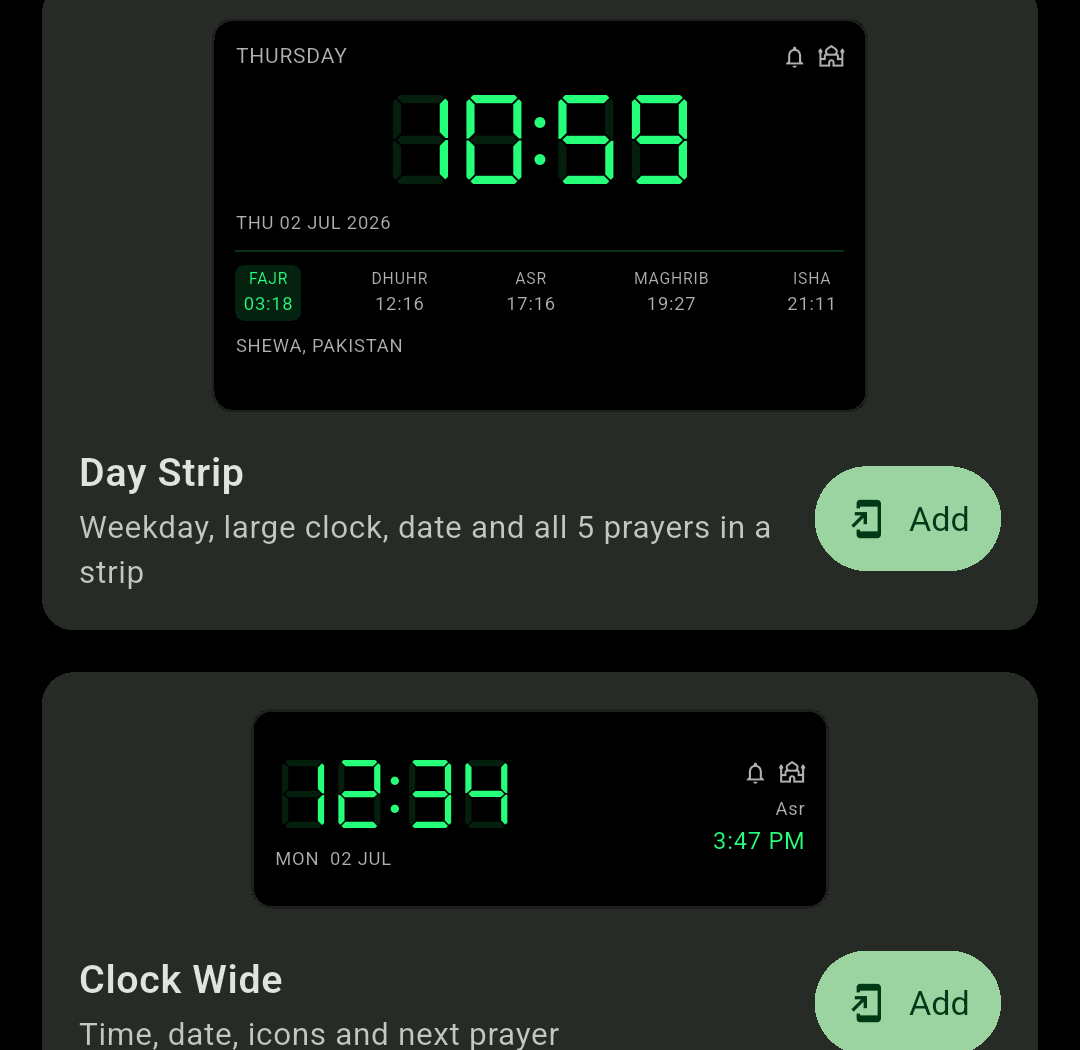
Some launchers (MIUI in particular) refuse pin requests. Add it the long way instead: long-press an empty spot on your home screen, choose Widgets, and look for Chimely.
Matching colours and fonts #
You do not have to configure this. Widgets automatically pick up your segment colour, background colour, clock font and time format — change them in Appearance and every placed widget follows.
Transparency #
Widget transparency lives on the Appearance tab, not the Widgets tab. It runs from 0% to 100% in ten steps and starts at 100% opaque — drag it down to let your wallpaper show through.

Keeping widgets ticking #
On phones that aggressively stop background apps, a widget clock can freeze at the last time it managed to draw. The fix is Keep widget time live when asleep, also on the Appearance tab and off by default.
Turn it on and, while the screen is off, the widget switches to a simpler system font that Android can keep ticking on its own — then switches back to the full LED look the moment you pick the phone up. If your widget is still stale, work through Reliability as well; the same battery managers cause both problems.